
Actions
In the BHL app, there are two primary ways to record observations, enter comments, or log treatments for your animals:
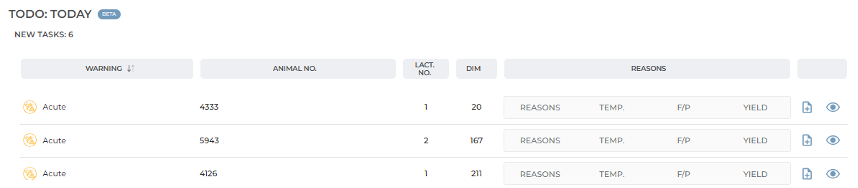
- From the Daily Tasks Menu – Use this view when you want to manage multiple animals flagged for inspection in one place. This menu allows you to quickly see which animals require attention and take action directly from the task list.
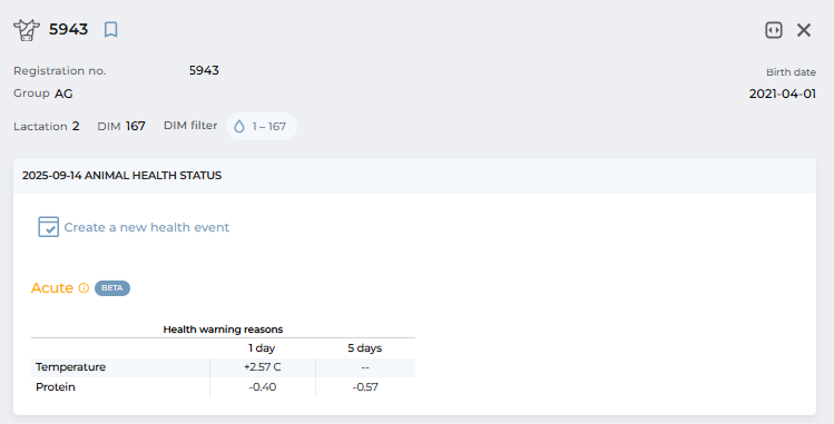
- From the Individual Animal Card – Use this view when you want to enter detailed observations, treatments, or review historical data for a specific animal. The animal card provides a complete overview of the animal’s health, milk yield, and other key indicators.
Daily task list
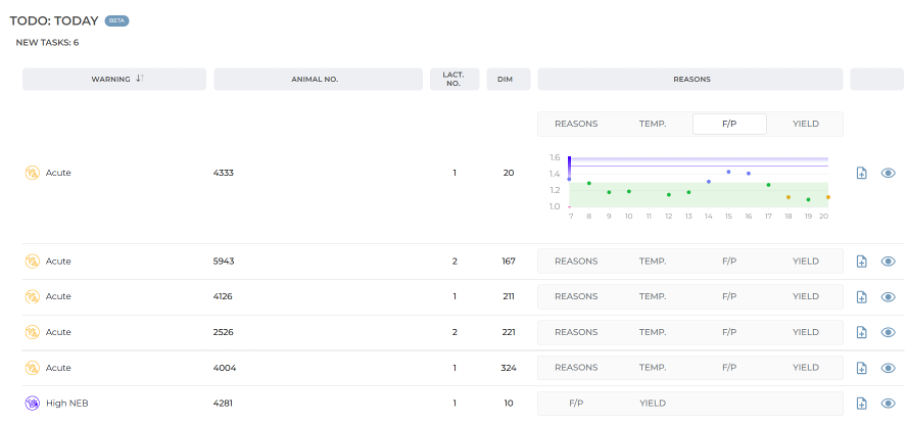
When you open the Daily Tasks panel, you are presented with a detailed list of animals recommended for inspection. This list expands on the TODO and IN PROGRESS categories shown in the widget, providing the underlying reasons each animal has been flagged.
What you see in the task list
For each animal, the following information is displayed:
- Lactation number and days in lactation.
- Reasons column, which summarizes why the animal is under review. The displayed data varies depending on the type of diagnosis:
- Acute cases – Show indicators such as temperature, fat, protein, and milk yield, which are evaluated together to confirm potential health issues.
- Negative Energy Balance (NEB) – Show fat-to-protein ratio along with milk yield (added based on user feedback).
By expanding a row, you can view the last 14 days of data for that animal. To access the full record, click the eye icon on the right, which opens the animal’s individual Profile Card.
If the animal is not added to the daily task list but you want to record a treatment or a note for it, you can do this from the individual animal’s profile. At the top of the profile, there is a button that opens the treatment page.
Taking action
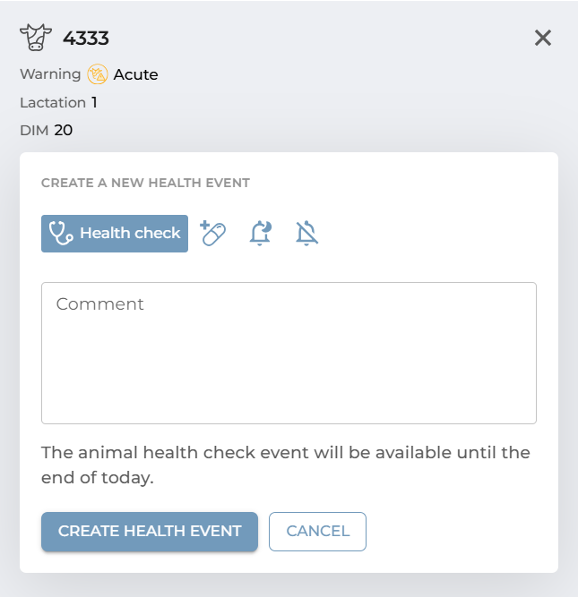
Once you decide on the appropriate action for an animal, you can create a new record by selecting the action icon next to it. Entering a comment automatically moves the animal from the TODO list to the IN PROGRESS list, and its status changes from New to the status you have selected. Additional notes you provide appear in the comments section of the table. When treatment is complete, click Complete Treatment, choose a completion date, and the animal’s treatment record will be closed.
Animal inspection options
At this stage, you can choose from four options, each of which allows you to add a comment visible to all users with access to your farm’s data:
- Examination flags the animal for further review.
- The animal remains in the TODO list until examined and also appears in a temporary list called Selected for Examination.
- Entries are visible to all users, reducing miscommunication and eliminating the need for paper notes.
- Treat
- Enables veterinarians to record the diagnosis and any administered medications.
- Treatment records are automatically linked to the animal’s profile and remain available for future reference.
- Snooze
- Use this option if no treatment is required but continued monitoring is necessary.
- The animal stays in the IN PROGRESS table for the specified snooze period.
- If the issue persists after the snooze period, the animal is returned to the TODO list. If its parameters normalize, it is removed from the list.
- False Alarm
- Removes an animal from the task list when no action is needed.
- Provides valuable feedback to the system, helping refine detection models and reduce future false positives.
Displaying entered data
The entered data is displayed in:
- Task List – All entries remain visible as long as they are active.
- Animal Profile – All records, including completed ones, are stored permanently for historical reference.
Completing treatments
Treatments remain visible even after the treatment period ends. To officially close a treatment record (except for snoozed entries), select the Complete Treatment option and confirm the completion date.