
The help center button opens the landing page of this guide, giving you direct access to tutorials, explanations, and support resources whenever you need assistance.
Category: Main page
Settings page
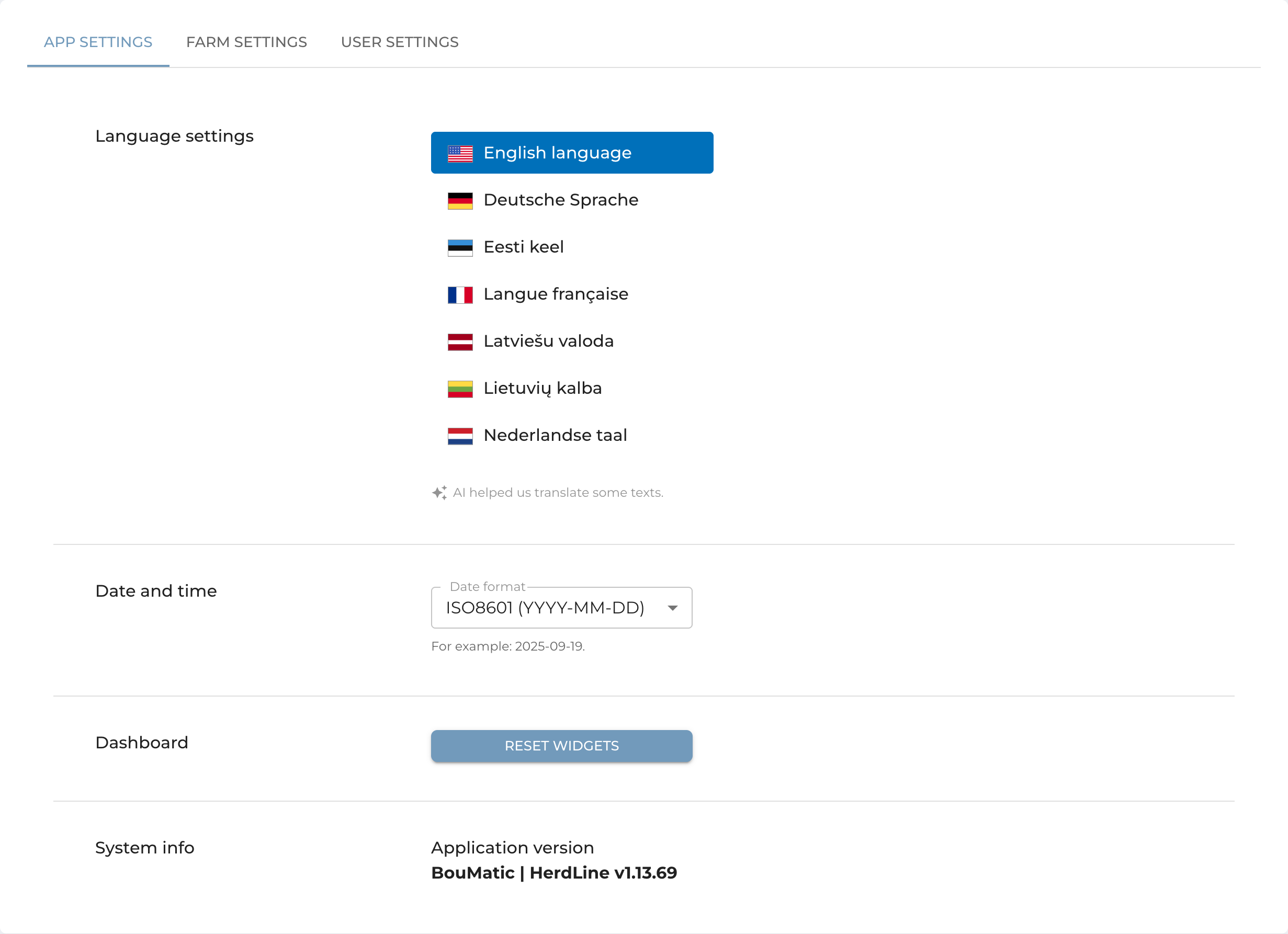
The settings page is divided into three categories:
1. App Settings – Change the language, adjust the date format, reset the widget dashboard to its default layout, or check your system information.
2. Farm Settings – Set custom health warning limits, which will apply from the following day onward.
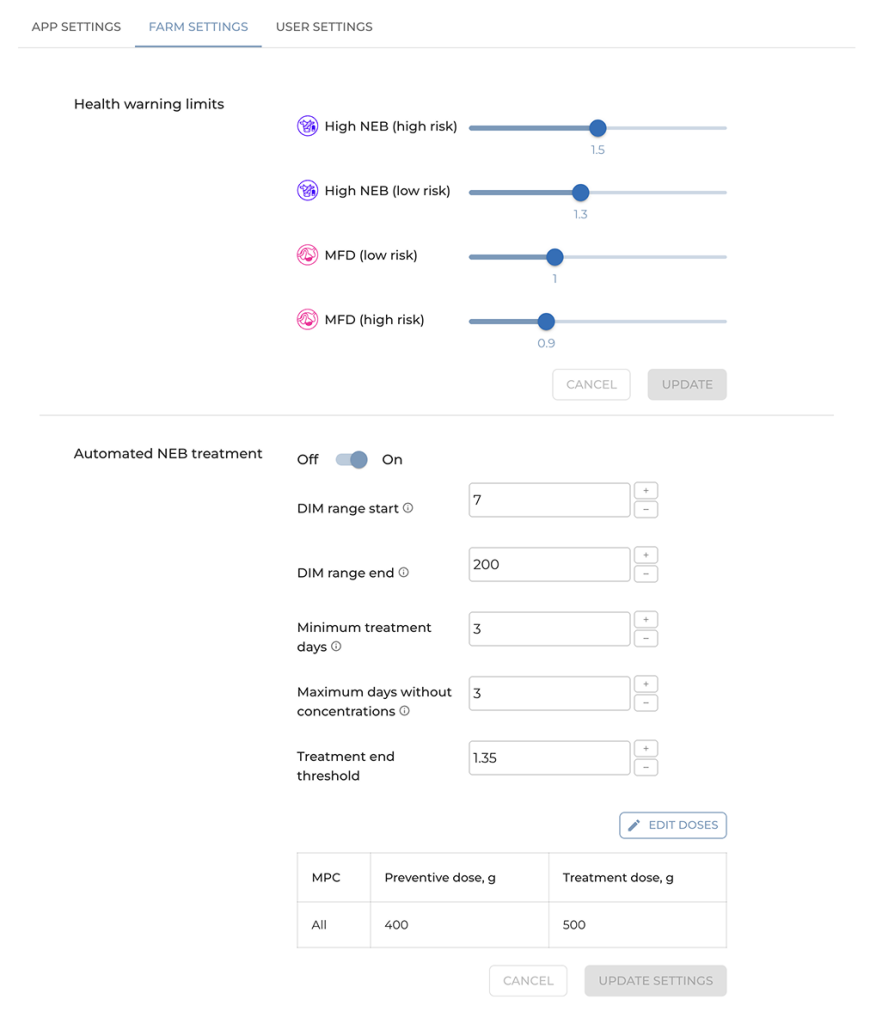
Automated NEB Prevention (Custom Setup)
The user can set up a variety of parameters in the BHL app to make sure that it works exactly the way they want it.
Set up minimum and maximum days in milk
To make sure that only cows within a certain stage of lactation are entered, the user can define the start and end ranges for the automation in the BHL app. The start value represents the minimum days in milk (DIM) when the cow becomes eligible for automatic NEB prevention, while the end value represents the maximum DIM when the liquid supplements should stop. For example, if you set the range from 10 to 200 DIM, only cows within that period will automatically receive the liquid feed supplement.
Set up daily doses
Each energy drink has its own recommended dosage, usually listed on the product packaging. The user can input this daily amount into the BHL app so that the robots automatically dispense the correct quantity. The app supports both standard (single) and treatment (double) doses.
Select when to stop supplementing
The user can decide how long each animal should continue receiving the liquid supplement. There are two conditions to configure this:
- Fixed length – set the minimum number of consecutive days (e.g., 3–5 days) that each animal should get the liquid supplement.
- FP ratio-based stop – set a target fat-to-protein (FP) ratio that, once reached, automatically stops further liquid supplement.
This ensures that animals receive the supplement only as long as it is beneficial.
Select actions for animals with not valid concentrations
Sometimes, milk fat and protein concentrations may not be validated. In robots, it happens for only around 1% of the milkings. In this case, the user can choose how the app should handle those animals — either exclude them from automatic supplements until new data is available or continue energy drink based on the last valid measurements. This prevents interruptions in feeding logic and ensures consistent herd management.
There are additional parameters that can be configured by contacting your BouMatic dealer. We can configure the supplement dosages by robots. This allows the user to try several liquid energy drinks and then select their favorite.
How do you set it up?
- STEP 1: Set up and calibrate the liquid feed according to BouMatic instructions.
- STEP 2: Set up BHL parameters for automatic feeding.
- STEP 3: Wait until the next day, when the automation starts.
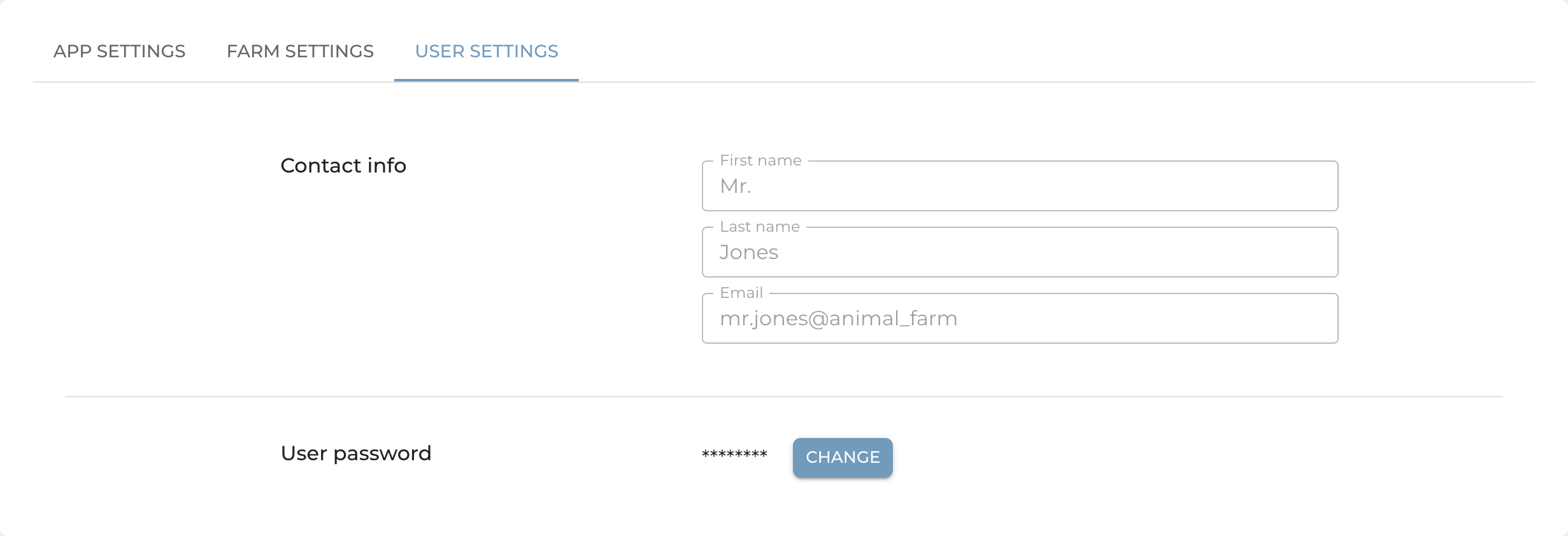
3. User Settings – Update your password.
Productivity comparison
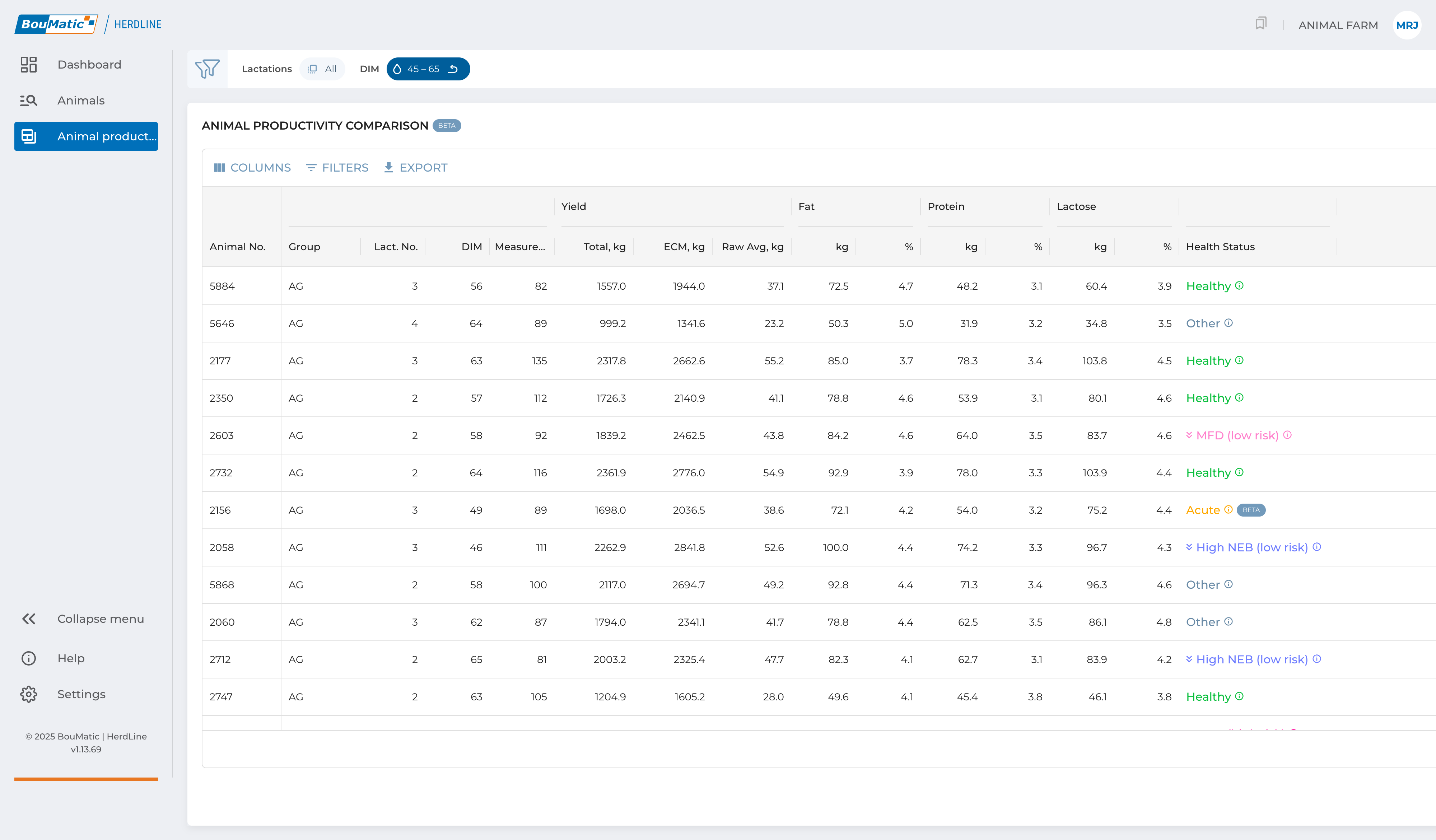
The productivity comparison page helps you evaluate and compare animals across a range of performance indicators. You can sort and filter animals by:
- Milk yield (both raw and standardized)
- Fat, protein, or lactose content
- Lactation number
- Days in lactation
Clicking on a parameter will sort animals from the lowest to highest value. Clicking again reverses the order, showing the highest performers first. The top bar also lets you define the number of lactation days to be included in the comparison, giving you flexibility in tailoring the analysis. Here, your selected dataset can be exported in CSV format.
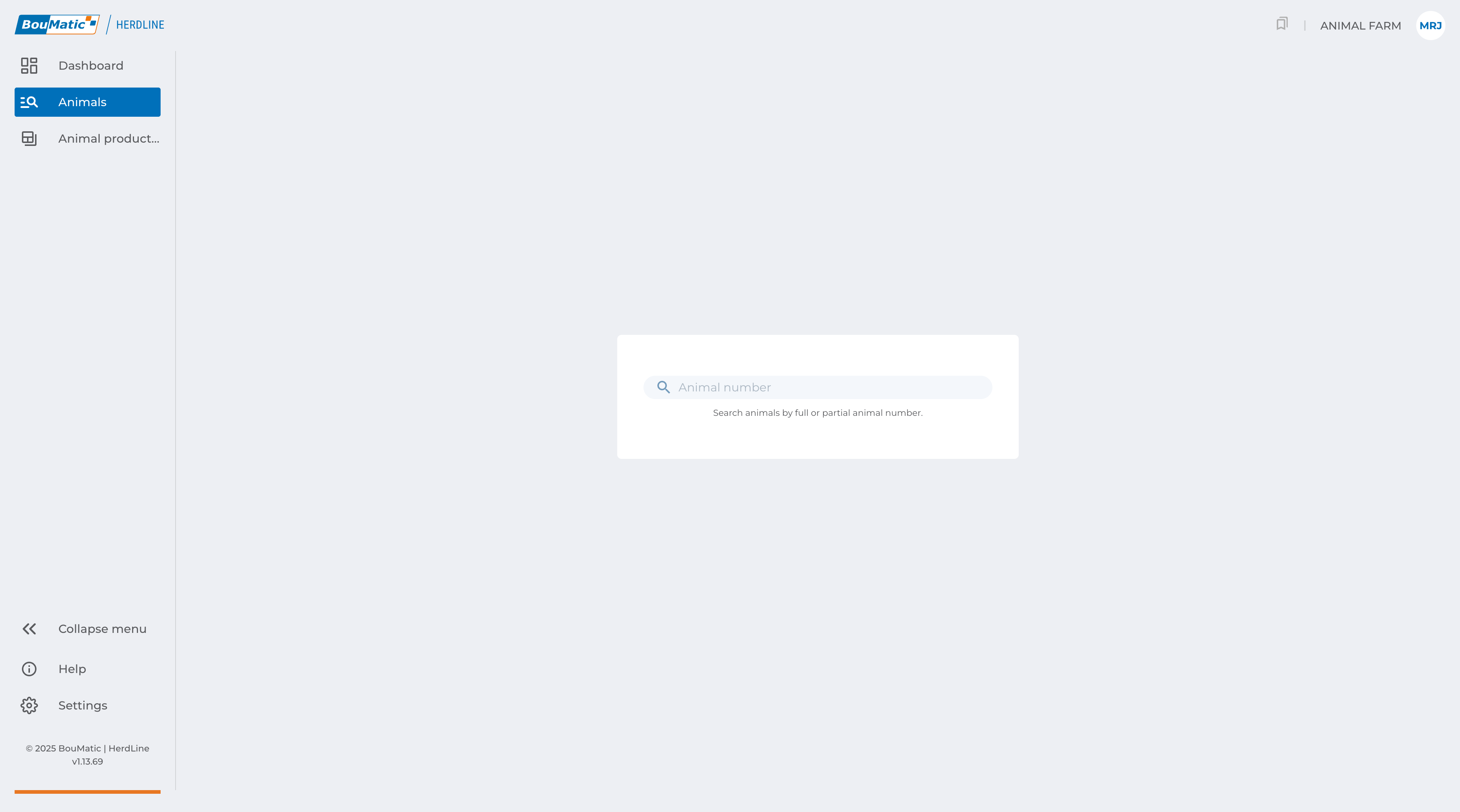
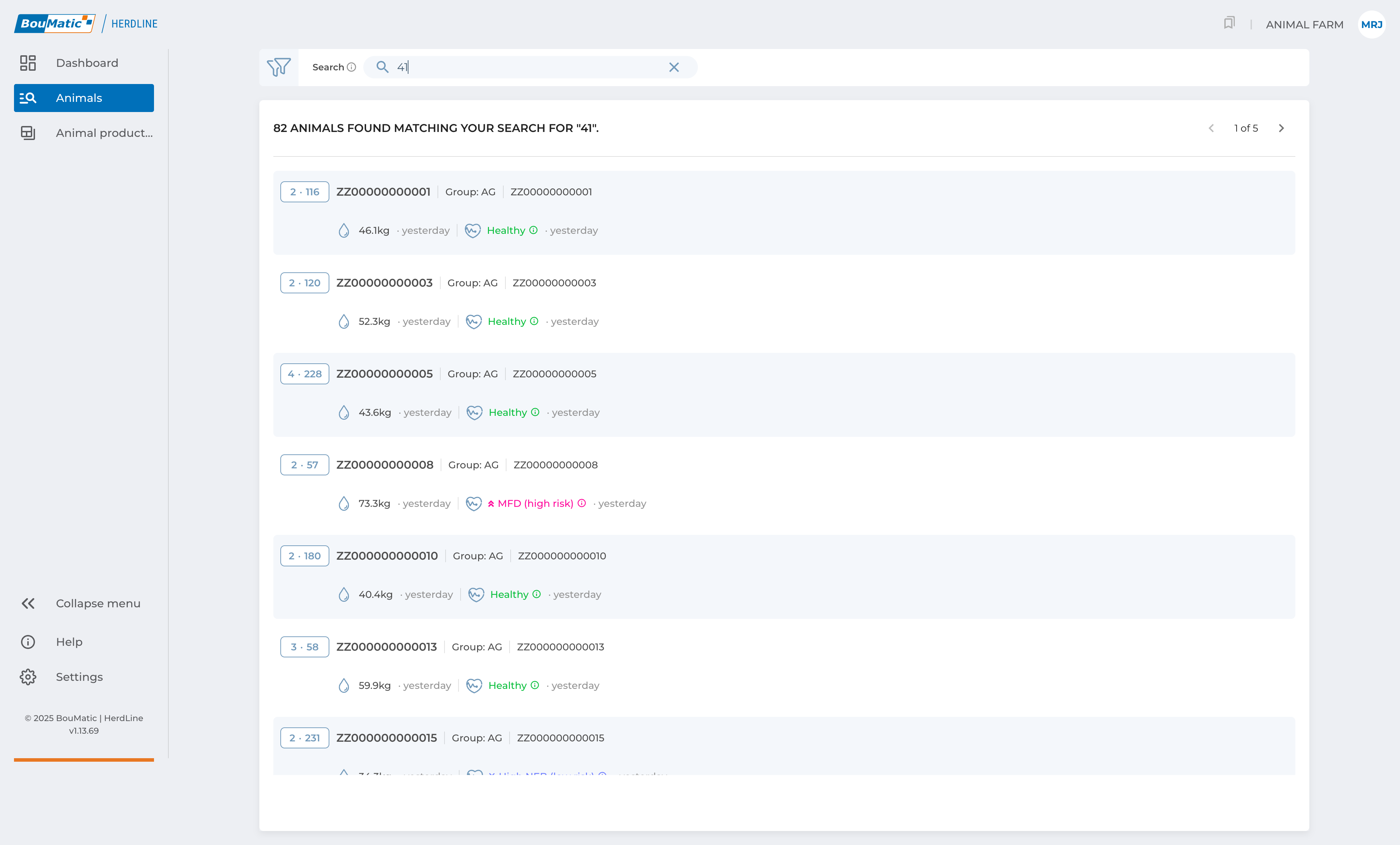
Animal search
The animal search page allows you to quickly locate any animal that has been milked at least once on your farm. You can search using either the official registration number or, if available, the animal’s short number. This tool is especially useful when you need to find a specific animal’s record without navigating through animal groups or scrolling through lists.
Sidebar
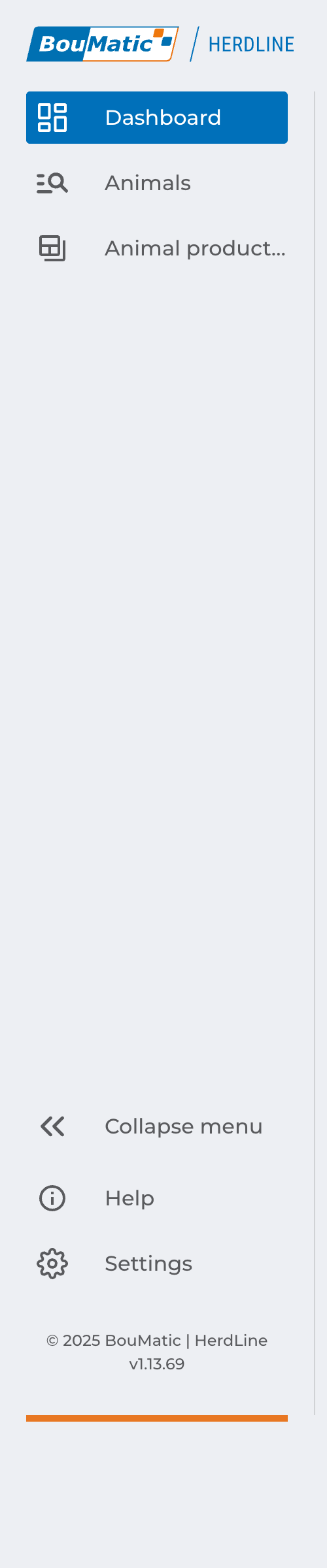
The sidebar menu provides quick access to the different pages of the BHL app. Each page offers a unique perspective on your herd, making it easy to move between high-level overviews, detailed animal records, and key management tools. The pages are arranged from top to bottom in the following order:
- Herd overview page
- Animal search
- Productivity comparison
- Help center
- Settings
Top bar
The top bar is your control center for managing what information is displayed. It includes:
- Filters – Use filters to refine the data displayed in your overview. For example, you can focus on a specific time period, animal group, or date. When a filter is active, it is clearly indicated so you always know the scope of your view.
- Bookmarks – Animals you’ve marked as important are accessible here (animals can be marked in their individual animal cards). This makes it easy to jump directly to key individuals without searching through the entire herd.
- User account menu – Access your account settings and switch between herds (if you have several). This ensures that your app experience stays tailored to your needs.
By combining filters, bookmarks, and account controls in one place, the top bar helps you quickly shape the overview into exactly the perspective you need.
