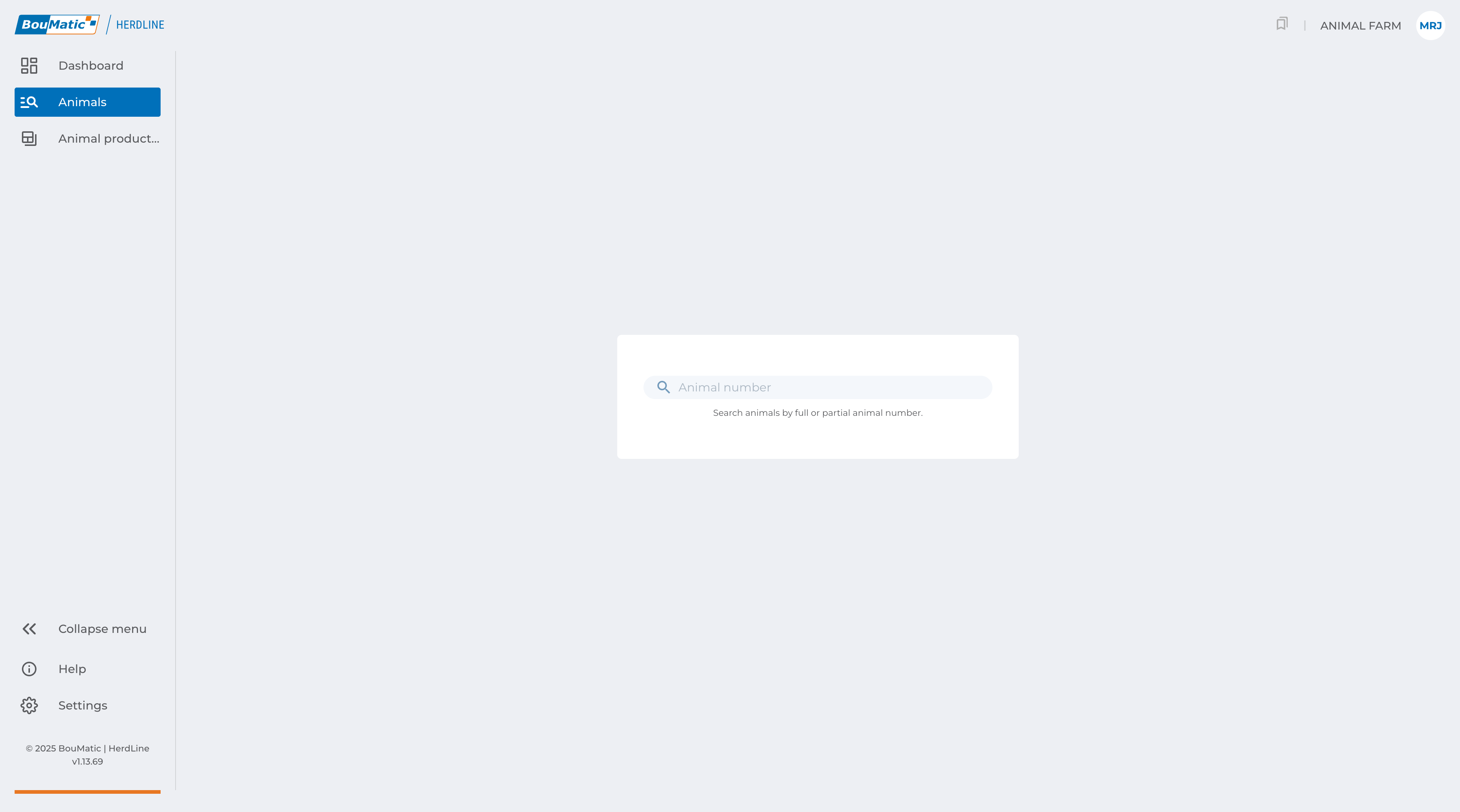
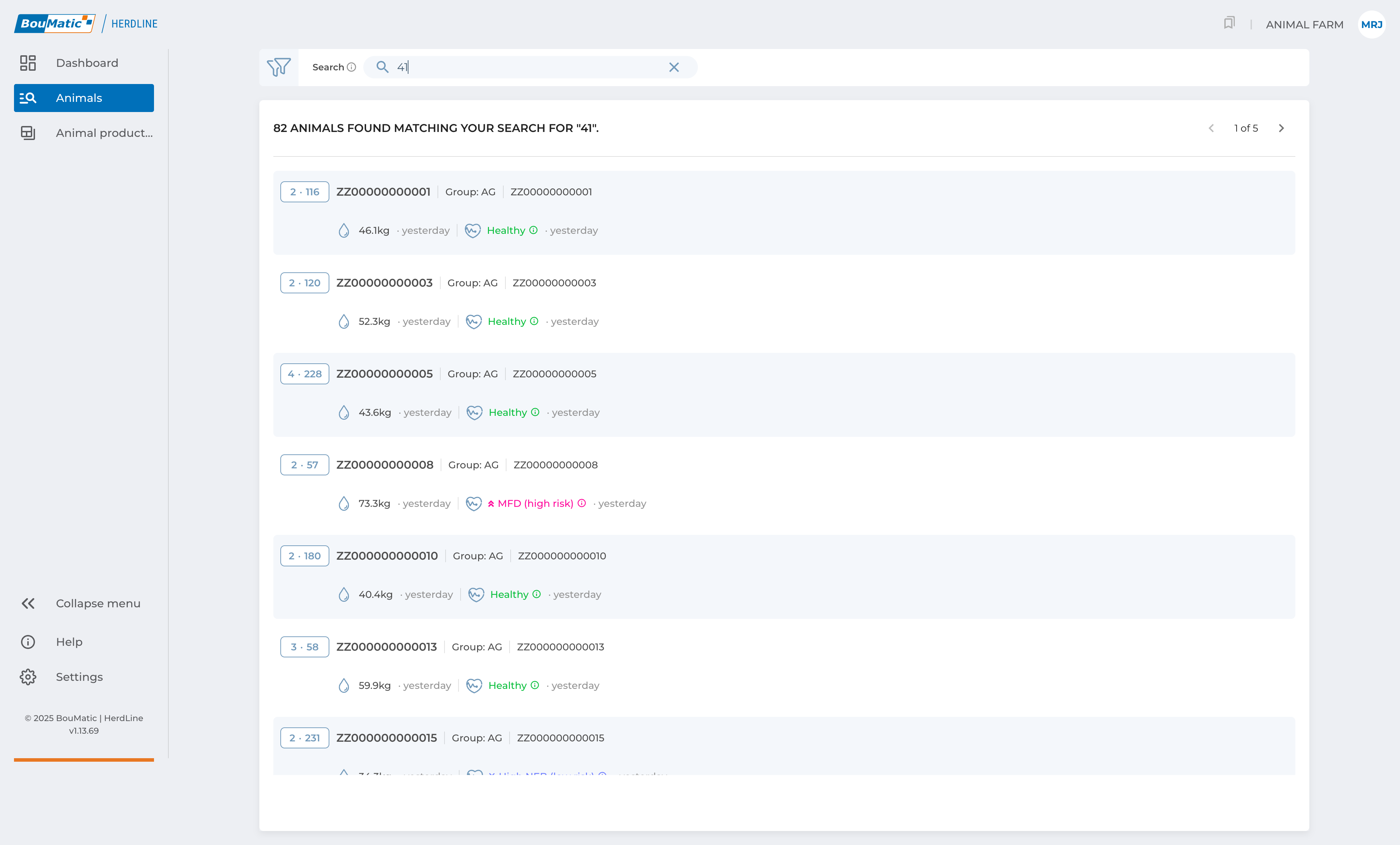
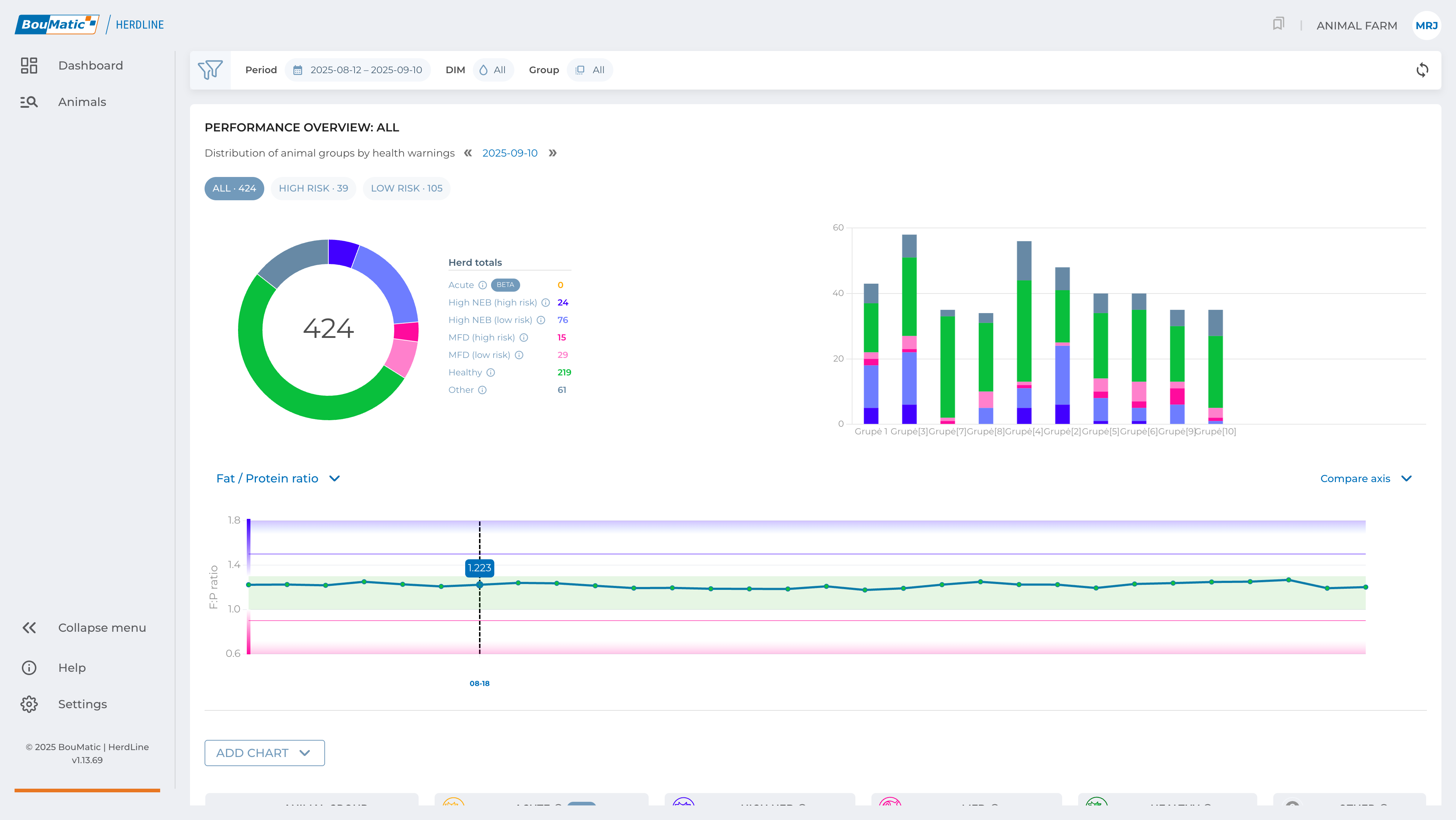
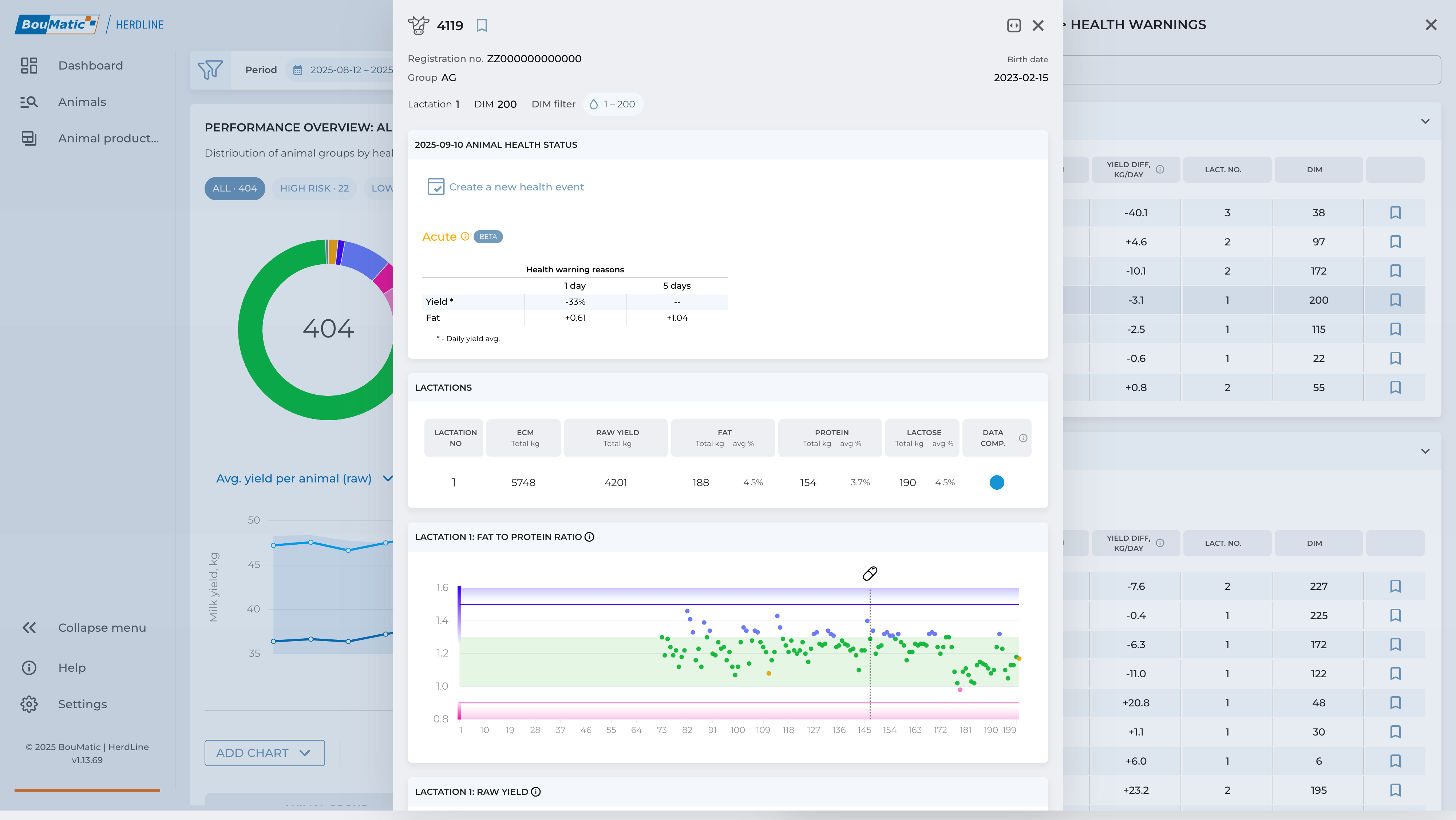
Animal search

The animal search page allows you to quickly locate any animal that has been milked at least once on your farm. You can search using either the official registration number or, if available, the animal’s short number. This tool is especially useful when you need to find a specific animal’s record without navigating through animal groups or scrolling through lists.


Sidebar

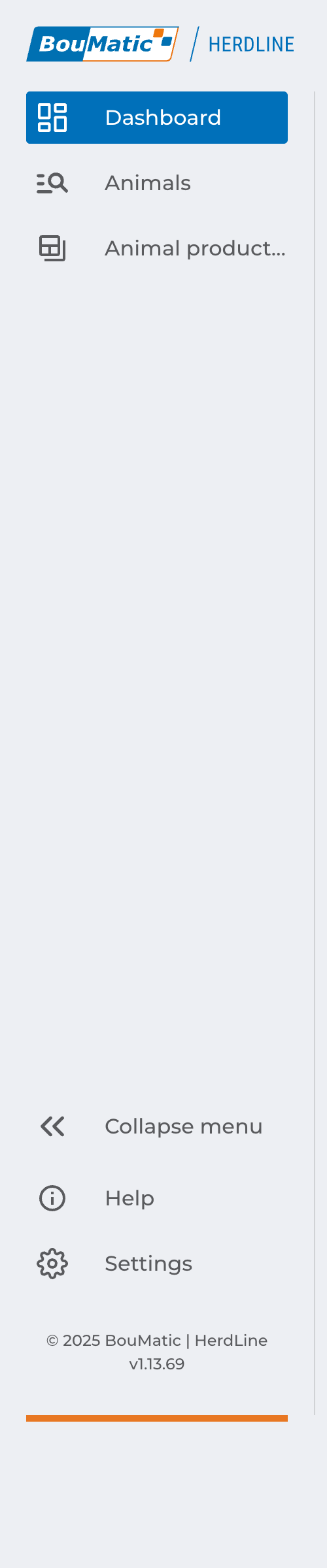
The sidebar menu provides quick access to the different pages of the BHL app. Each page offers a unique perspective on your herd, making it easy to move between high-level overviews, detailed animal records, and key management tools. The pages are arranged from top to bottom in the following order:

  • Herd overview page
  • Animal search
  • Productivity comparison
  • Help center
  • Settings

Top bar

The top bar is your control center for managing what information is displayed. It includes:

  • Filters – Use filters to refine the data displayed in your overview. For example, you can focus on a specific time period, animal group, or date. When a filter is active, it is clearly indicated so you always know the scope of your view.
  • Bookmarks – Animals you’ve marked as important are accessible here (animals can be marked in their individual animal cards). This makes it easy to jump directly to key individuals without searching through the entire herd.
  • User account menu – Access your account settings and switch between herds (if you have several). This ensures that your app experience stays tailored to your needs.

By combining filters, bookmarks, and account controls in one place, the top bar helps you quickly shape the overview into exactly the perspective you need.

App structure

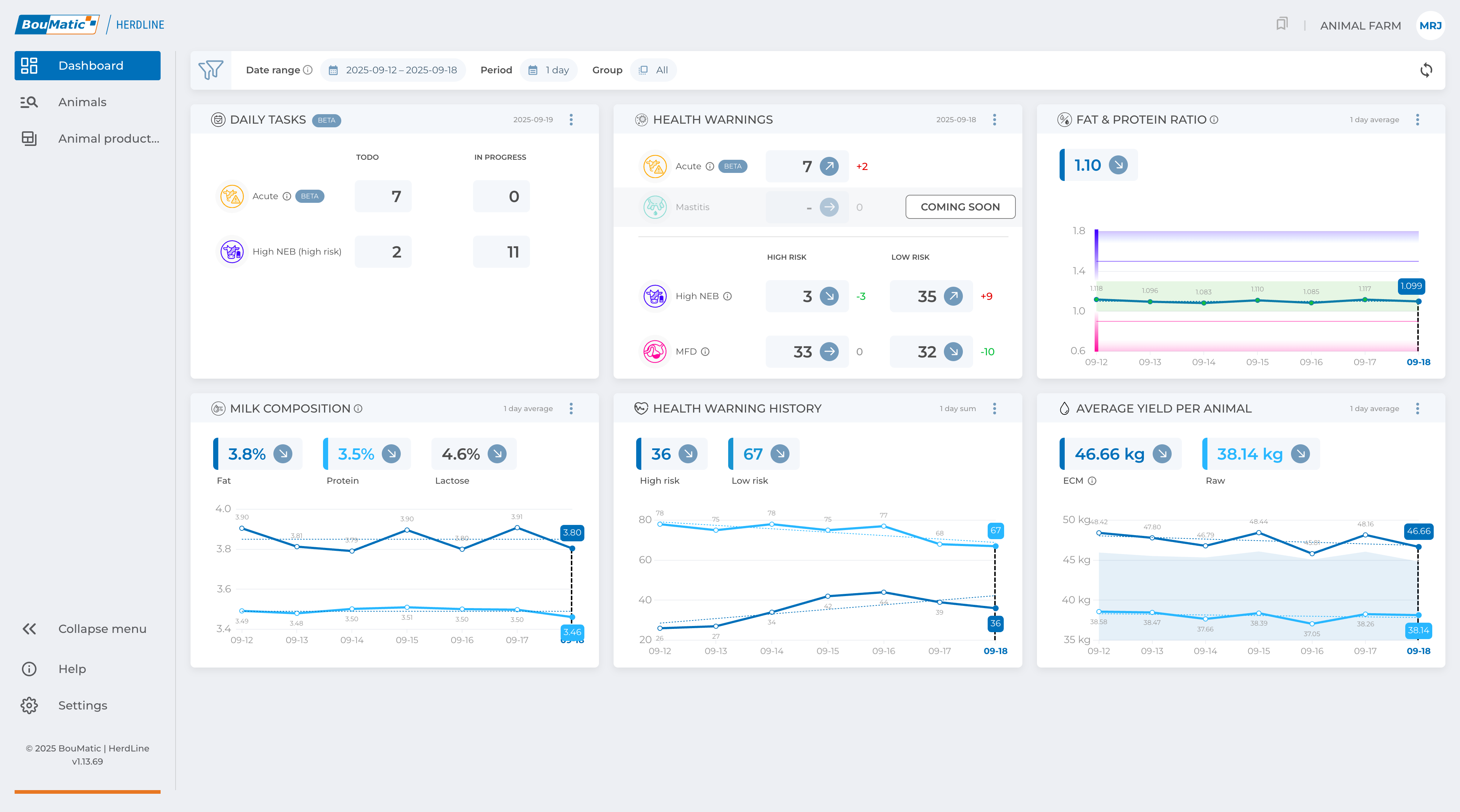
The BHL app is designed around three levels of information, making it easy to navigate from a broad herd overview down to individual animal insights. This layered approach ensures that you always see the right level of detail for the task at hand.

  • Herd overview – At the highest level, the overview displays a snapshot of your entire herd. Here you can track daily averages, trends, and performance indicators over a selected period. This view gives you a quick sense of the overall herd health and productivity.
  • Animal group view – This level focuses on subsets of your herd. It allows you to examine how different groups are performing, compare trends across groups, and identify dynamics that may not be visible at the herd level.
  • Animal card – At the most detailed level, the individual animal card provides specific information for each animal. This includes performance, health data, and any relevant notes. By drilling down to this level, you can make well-informed decisions about individual animal care.

Together, these levels form a logical flow: from broad patterns, to group behaviors, to individual details.

Installing the app

BHL is a web app you can access directly through your browser. It features seamless data synchronization across all your devices, ensuring your milk and herd data is always up to date, whether you’re using a phone, a tablet, or your computer. Follow the steps below to install the BHL app on your device.


Desktop Installation (Windows, macOS, and Linux)

To install this web application on your desktop for quick access, follow the instructions specific to your web browser. This process often involves using an “Install” or “Add to Desktop” option in the browser’s menu.

Please refer to the official documentation for your browser:


Android Devices (Phones & Tablets)

  • Open the browser on your device.
  • Visit: app.brolisherdline.com
  • When the page loads:
    • Tap the three-dot menu icon (⋮) in the top-right corner.
    • Select “Add to Home screen” or “Install app”.
    • On some devices, a pop-up may automatically suggest this—simply tap “Add”.
  • The BHL icon will now appear on your home screen for quick access.
    Compatible with most Android smartphones and tablets, including Samsung, Google Pixel, Lenovo, and others.

Apple Devices (iPhone & iPad)

  • Open the browser.
  • Go to: app.brolisherdline.com
  • Tap the Share icon (the square with an upward arrow).
  • In the menu, scroll down and tap “Add to Home Screen”.
  • Tap “Add” in the top-right corner.
    The BHL icon will now be on your home screen, giving you one-tap access like a native app.